
To access and update your MxToolbox profile, follow these steps:
- Log in to your account using your designated email address and password.
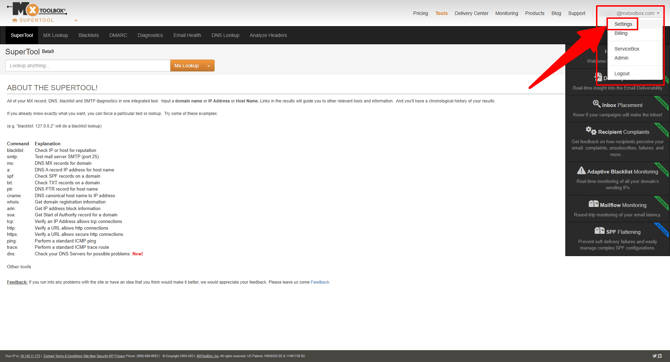
- Click your username/email address in the top right corner of the page to access the dropdown menu.
- Click the Settings option (arrow notated below), which takes you to General Settings.
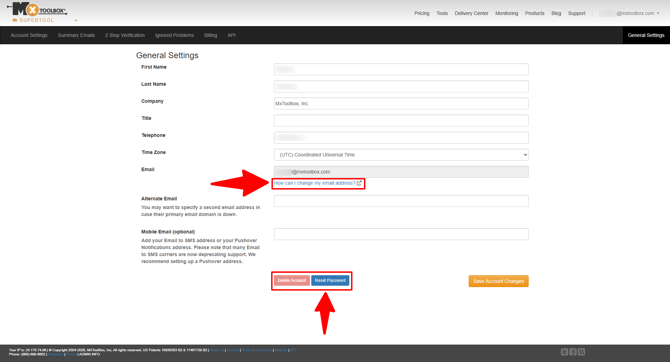
- Make changes as needed while on this profile page. You can update various fields, including: Telephone, Time Zone, Email (arrow notated below), Alternate Email, Mobile Email, Reset Password (arrow notated below), and Delete Account.
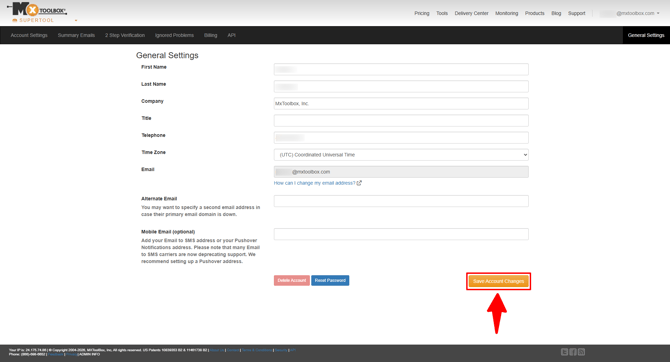
- Click the orange Save Account Changes button (arrow notated below) to confirm your updates.
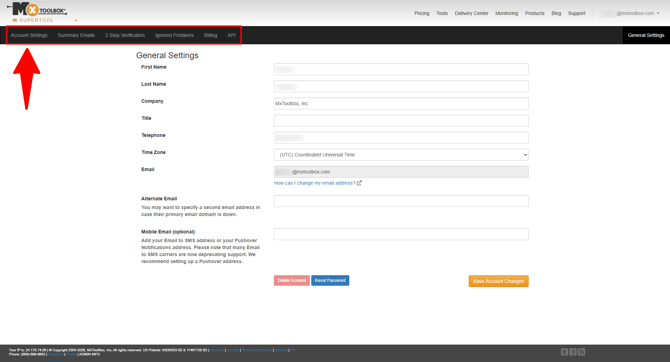
You can also access other sections of your account at the top of this General Settings page via the tabs on the black menu bar (highlighted below). Specifically, you can click Account Settings (arrow notated below) to make changes specific to your account, including Access Level for user permissions of other team members.
To learn how to change your time zone, click here. For help with user permission levels, click here.