
To set up Pushover notifications for your MxToolbox account, simply follow these steps:
- Log in to your account.
- Click “username@mxtoolbox.com” in the top right corner for the dropdown menu.
- Click “Settings” option directly below your username.
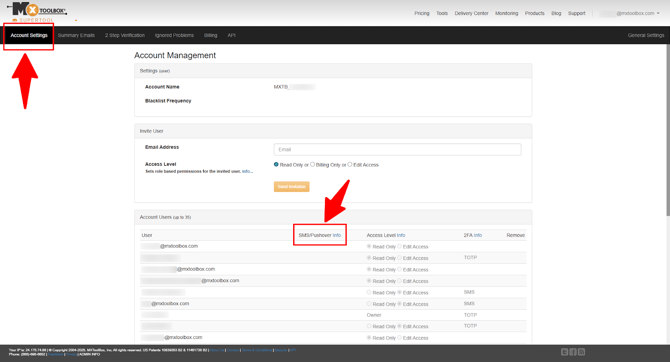
- Click “Account Settings” tab (shown in below image) to access your Account Management information.
- Find the Account Users section.
- In the SMS/Pushover field (shown in below image), enter the user’s designated Pushover mobile email address, separated by the @ symbol (e.g., 1234567890@txt.att.net).
- Click “Save” to confirm your Pushover update.
- A green “Your settings have been saved” message will appear.
You can also provide your Pushover information by doing the following:
- Log in to your account.
- Click “username@mxtoolbox.com” in the top right corner for the dropdown menu.
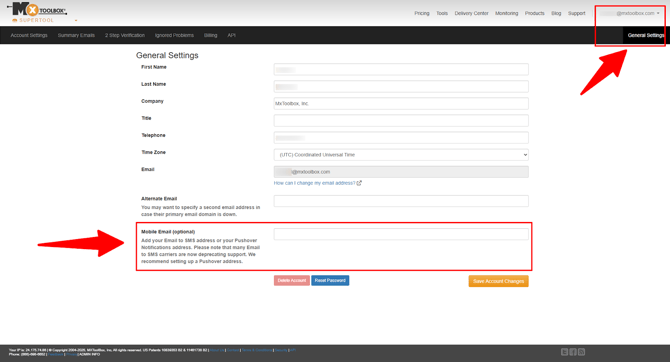
- Click “Settings” option directly below your username, which opens the General Settings page (shown in below image).
- Find the Mobile Email (optional) field (shown in below image).
- Add your Pushover notifications address (recommended by MxToolbox).
- Click the orange “Save Account Settings” button.
MxToolbox Notifications
Once set up, verify and add Pushover notifications by completing these steps:
- Log in to your account.
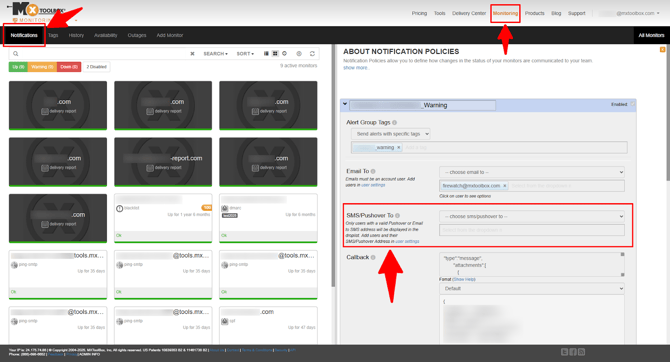
- Click the Monitoring tab at the top of the page (shown in below image).
- On the Notifications page (shown in below image), click any notification on the right side to access the “SMS/Pushover To” field (shown in below image).
- Confirm all Pushover app users are set up correctly.
Note: If you don't have a Pushover app account, you can create one on their website or by accessing App Store (iPhone) or Google Play (Android). You'll then receive an email address with an @pomail.com that you can add to your MxToolbox Account Settings. After your setup is complete, we'll send you Pushover notifications to your respective iOS and/or Android device(s).